September 2026 Community Update
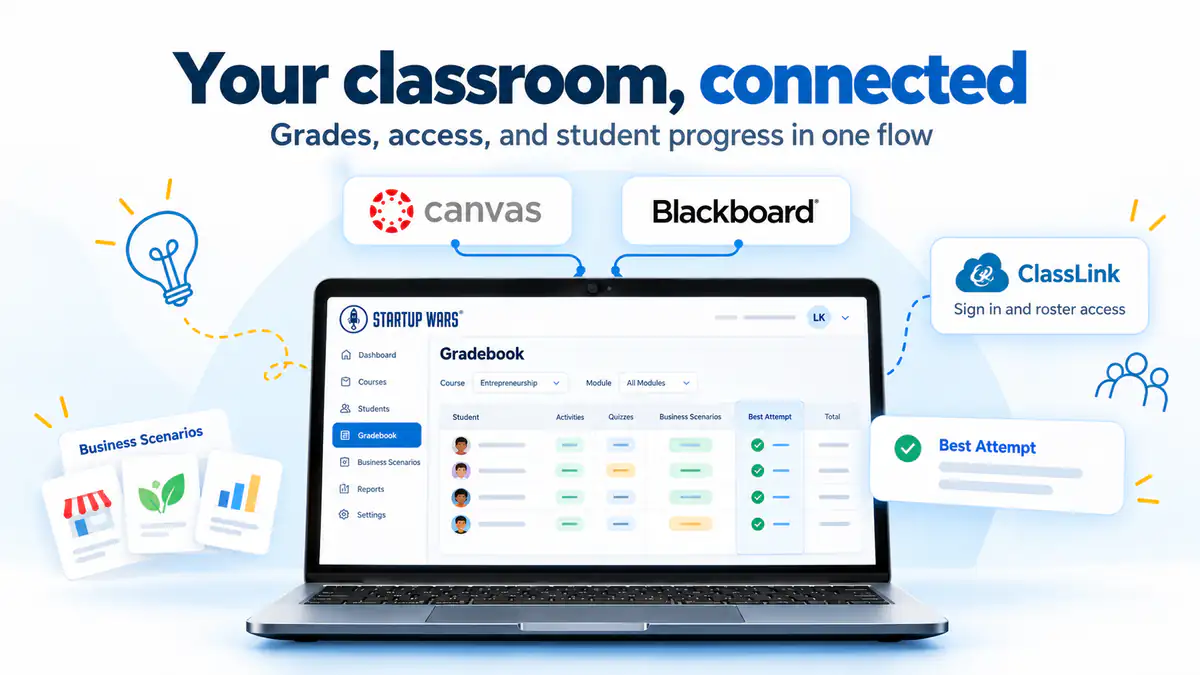
An educator’s time is their most valuable asset. Between planning lessons, supporting students, and keeping up with grades, every tool you bring into your classroom should help make that work easier. Connecting those tools means fewer steps for you and a more familiar starting point for your students.
That’s why we’re excited to introduce Startup Wars integrations with Canvas and Blackboard, making it easier to bring hands-on entrepreneurship into your course through the tools you and your students already use.
This month, we’re also sharing new ways to review student attempts, a milestone for schools using ClassLink, and a closer look at the 15 business scenarios introduced in August.
Bring entrepreneurship simulations into your existing course
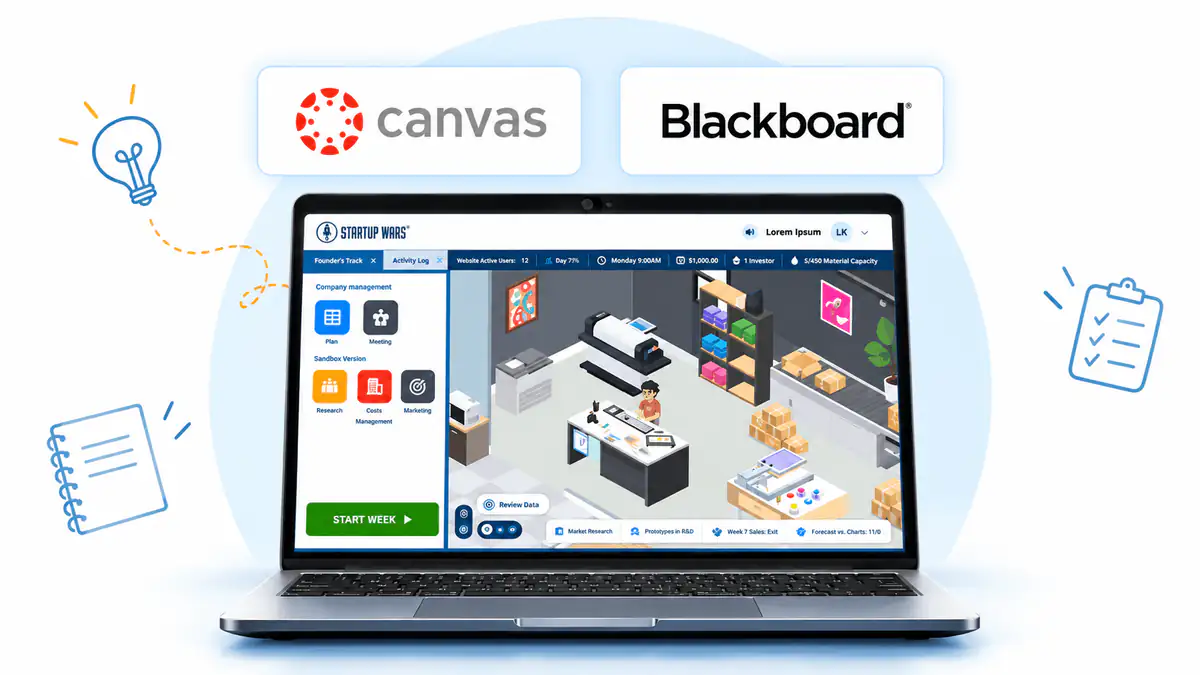
Startup Wars gives students a place to practice running a business, from setting prices and managing inventory to making staffing and financing decisions. Our Canvas and Blackboard integrations connect that experience to the learning management system, or LMS, your class already uses.
For connected courses, instructors and students can access Startup Wars through their LMS, and simulation grades sync back to the course gradebook. The connection supports both the student’s path into the activity and the instructor’s work reviewing the results.
Give students a familiar starting point
Single sign-on lets you and your students access Startup Wars through Canvas or Blackboard. Students can begin from the LMS they already visit for their course, bringing the simulation into a familiar routine.
For instructors introducing entrepreneurship simulations, that connection helps make access part of the course experience. Your students can move from their LMS into the business decisions you want them to practice.
Sync each student’s best simulation score automatically
Grades from student simulation attempts post automatically to the connected Canvas or Blackboard gradebook, without manual entry. When a student completes multiple attempts, their highest score is the one that syncs.
For example, if a student earns scores of 62, 78, and 70 across three attempts at the same simulation, the synced score is 78. This gives you a consistent way to record the student’s best simulation result as they try different approaches.
The score can also be a starting point for discussion. You might ask students which decisions changed between attempts and what they would try next, connecting the recorded result to their reasoning about the business.
Keep scenarios and class sections organized
Each scenario appears in its own clearly labeled gradebook column. A result from the Classic Food Truck scenario stays distinguishable from a result in the Smoothie Truck or Specialty Coffee Truck scenario.
If you manage multiple Startup Wars classes through one single sign-on login, grades sync to the corresponding course section. These capabilities work in both Canvas and Blackboard, helping you keep different activities and groups organized within your LMS.
To get started, tell our team which LMS your school uses and which course you would like to connect. We can help confirm the appropriate setup for your institution and coordinate next steps with your LMS administrator where needed.
Get help connecting your course
A clearer view of student attempts and scores
We’ve also updated how students and instructors review results inside Startup Wars.
Students can see their own best attempt
Students now have a view of their best attempt and score for a simulation, information that was previously visible only to instructors.
That gives students a result they can check themselves and refer to when discussing their work with you. After another attempt, they can see their highest score as they reflect on the decisions they made.
Instructors can sort and filter attempt history
The instructor’s student attempts table now supports sorting and filtering, giving you more control over how you review the class’s attempt history.
As students complete more attempts, you can narrow the table to the records you want to review. Together with the student’s best-attempt view, this gives both sides a clearer starting point for a conversation about results.
In case you missed it: 15 business scenarios to explore
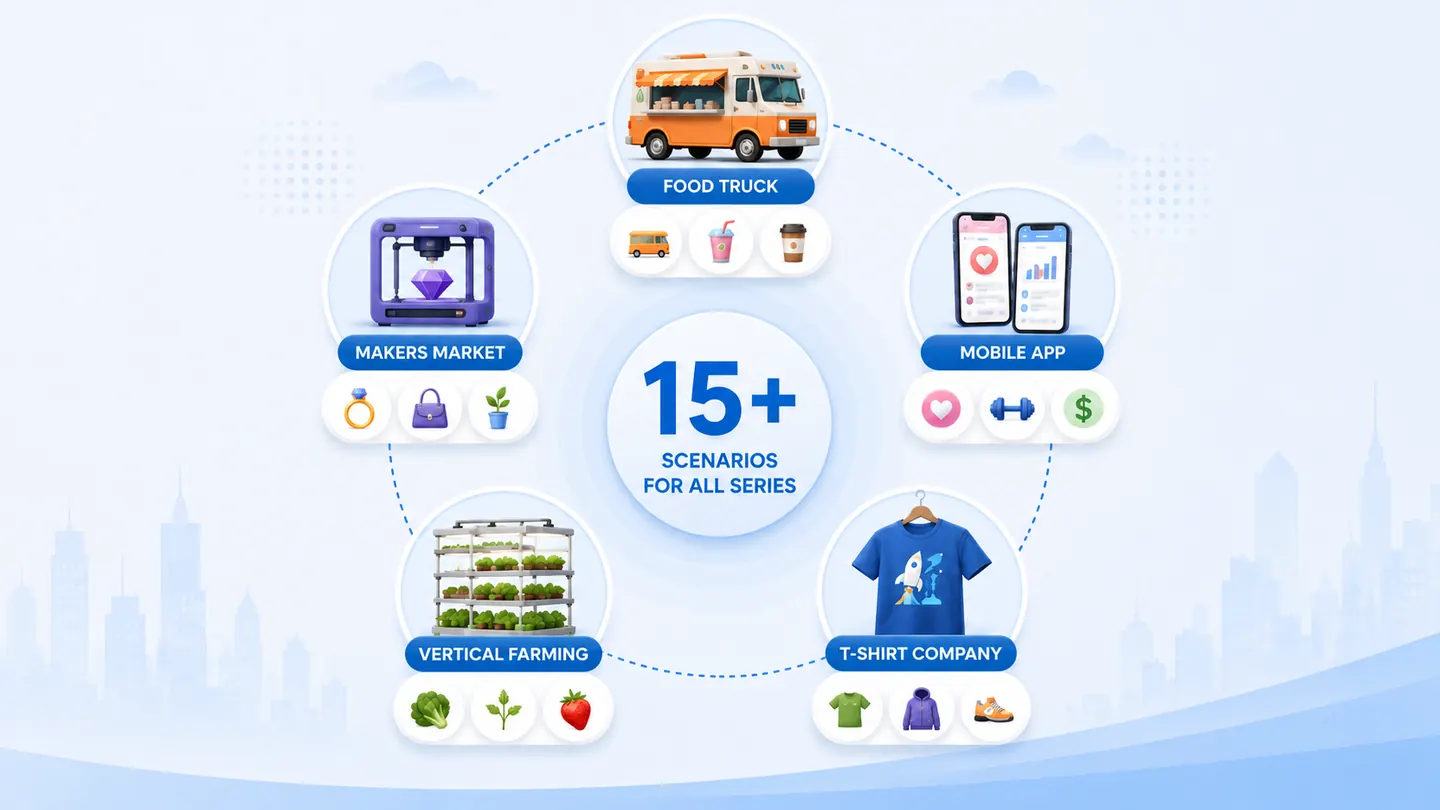
In August, we introduced three scenarios in each of our five simulation series, giving instructors 15 ventures to explore across Food Truck, Makers Market, Mobile App, Vertical Farming, and T-Shirt Company.
Each scenario introduces a different business context, with its own products, costs, and operating considerations. Students continue practicing familiar business concepts while considering how their decisions need to change with the venture.
| Simulation series | Scenario 1 | Scenario 2 | Scenario 3 |
|---|---|---|---|
| Food Truck | Classic Food Truck | Smoothie Truck | Specialty Coffee Truck |
| Makers Market | 3D-Printed Jewelry | 3D-Printed Everyday Accessories | Premium 3D Home Décor |
| Mobile App | Dating App | Fitness & Wellness App | Student Fintech App |
| Vertical Farming | General Produce Farm | Culinary Herb Farm | Specialty Produce Farm |
| T-Shirt Company | Graphic Tee Shop | Streetwear Brand | Premium Athletic Apparel |
Bring different business decisions into the discussion
Consider the Food Truck Series. Moving from a Classic Food Truck to a Specialty Coffee Truck changes the menu students manage and the ingredients they need to purchase. Different costs and shelf lives create new questions about inventory, pricing, and expected demand.
You can use those differences to guide a classroom discussion:
- Ask students how their purchasing decisions changed when they began selling different products.
- Have them explain why a pricing approach that worked in one venture might need adjusting in another.
- Invite the class to compare how operating costs affected the amount of capital available for other decisions.
These are opportunities to discuss choices students have made inside the simulations. With Canvas or Blackboard connected, the results remain organized by scenario in the course gradebook as you explore those different experiences.
Explore the Startup Wars simulation lineup
Startup Wars is now a ClassLink Certified Partner
Startup Wars is now formally listed as a ClassLink Certified Partner, with our single sign-on and Roster Server integrations certified and our listing updated in ClassLink’s App Library.
For schools and districts evaluating Startup Wars, that listing provides a reference their IT team can review when considering the integration. Instructors already using ClassLink can continue signing in as usual; the certification update does not require a change to their existing sign-in process.
If your school notices a blank roster field, your district may need to grant access to that information through ClassLink’s Partner Access Window. Existing single sign-on access continues to work. Our team can help your school understand the next steps if a roster question comes up.
Questions about the September update
Does Startup Wars integrate with Canvas and Blackboard?
Yes. Startup Wars supports access through Canvas and Blackboard using single sign-on, along with automatic simulation grade sync for connected courses. Contact the Startup Wars team to confirm availability and setup for your institution and plan.
Which simulation attempt syncs to the LMS gradebook?
The student’s highest-scoring attempt syncs to the connected gradebook. If the student completes several attempts, a lower score from a later attempt does not replace their best score.
How are different scenarios and class sections handled?
Each scenario has its own labeled gradebook column. When an instructor manages multiple Startup Wars classes through one single sign-on login, grades are routed to the corresponding course section.
Can students view their simulation scores in Startup Wars?
Yes. Students can now see their best attempt and score for a simulation within Startup Wars. Instructors can also sort and filter the student attempts table when reviewing class activity.
How many business scenarios does Startup Wars offer?
Startup Wars offers 15 scenarios across five simulation series: Food Truck, Makers Market, Mobile App, Vertical Farming, and T-Shirt Company. Each series contains three ventures. The scenarios available to your class depend on its access and course setup.
Let’s make these updates work for your classroom
We’re excited to keep building Startup Wars around the way you teach and the experiences you want to create for your students. As you explore these updates, we’d love to hear what’s working for your class and where you could use a little help.
If you’re connecting a course, choosing a scenario, or exploring Startup Wars for the first time, get in touch with our team. You can also open your instructor account to review your classes and available simulations.
Thanks for being part of our community,
The Startup Wars Team
About the author
Startup Wars Team
Entrepreneurship education contributors
The Startup Wars editorial team shares practical guidance on experiential learning, business education, and helping learners build real-world skills.
More from Startup Wars Team